
A client reply can lose its value if the right person doesn’t see it. A clear GHL SMS notification configuration for your tax office starts by selecting the event that triggers an alert, then choosing who receives it and what information the message includes.
You want alerts that are useful at a glance, not messages that leave your team guessing which client replied. This guide walks you through setting up inbound-message notifications, adding reply content and contact details, and choosing internal or appointment-related recipients.
You’ll also learn how to test your setup and troubleshoot common trigger and delivery problems. With the right configuration, your team can receive more actionable notifications while keeping internal alerts separate from messages sent to clients.
Key Takeaways
- Match each alert to the event you need to track, such as a booking, cancellation, reschedule, reminder, or follow-up.
- Use an inbound SMS workflow to route a customer’s reply internally; an internal notification does not automatically send a response to the customer.
- Choose recipients based on who needs to act, and distinguish internal alerts from appointment messages sent to contacts.
- Use delivery reports to identify SMS errors, and make sure phone numbers include the appropriate country code.
- Keep notifications focused on useful contact and message details so your team can understand the alert quickly.
Including inbound message body and contact details
Include country codes in phone numbers you use for HighLevel SMS delivery. For a U.S. test, include +1 before the destination number. Registration and messaging requirements may vary by phone-number type and applicable rules; this setup guide doesn’t establish requirements for every state or number type.
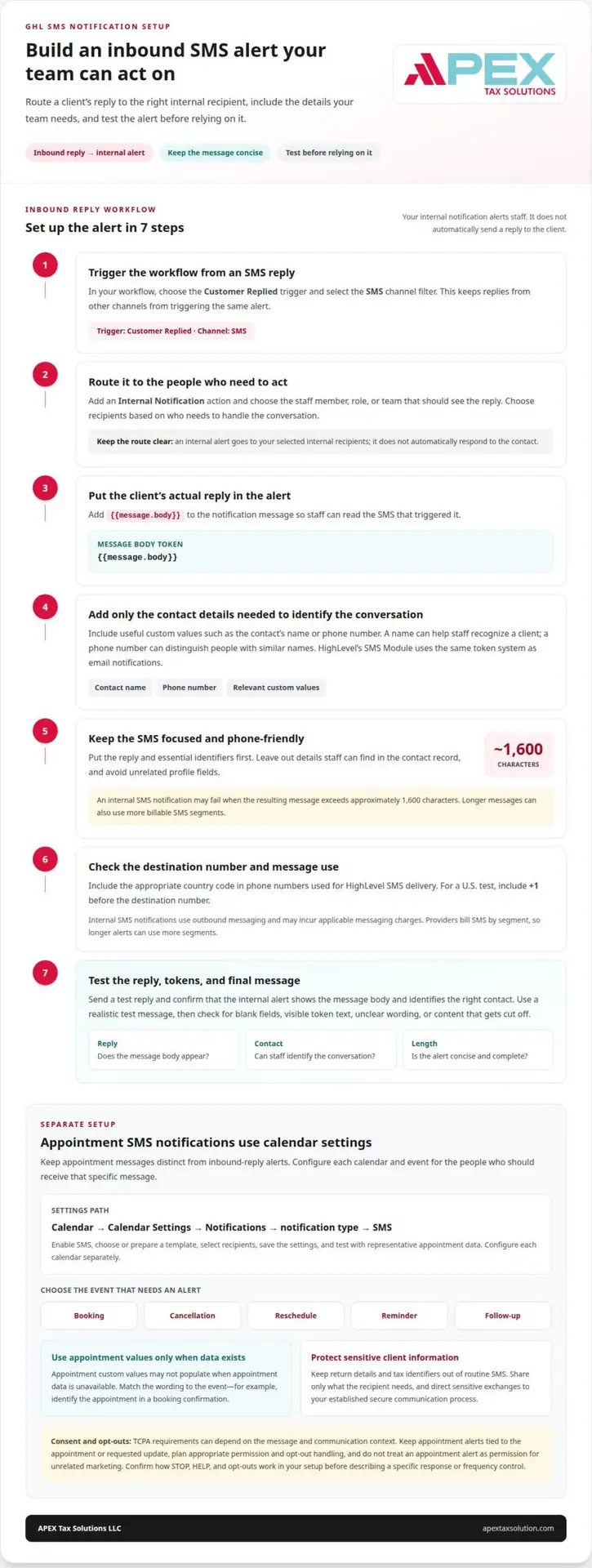
- Start with the event that captures the incoming reply. In your workflow, use the Customer Replied trigger and select the SMS channel filter. This prevents replies from other channels from triggering the same alert. Add an Internal Notification action for the staff member, role, or team that should see the message. This action alerts internal recipients; it doesn’t automatically reply to the contact.
- Include the actual reply in the alert. Add the custom value {{message.body}} to the notification message so staff can read the triggering SMS. Then include the contact details your team needs to identify the conversation, such as the contact’s name or phone number. HighLevel’s SMS Module uses the same token system as email notifications, so select relevant custom values when building the message.
- Keep the alert readable on a phone. An internal SMS notification may fail when its resulting message exceeds approximately 1,600 characters. A long client reply combined with several contact fields can exceed that limit. Put the reply and essential identifiers first, and leave out details staff can find in the contact record. Concise messages also help manage segment-based SMS billing.
- Test the message before relying on it. HighLevel allows a test SMS to preview an appointment notification. For an inbound-reply workflow, send a test reply and confirm that the internal alert displays the message body and contact details. Check for blank fields, unclear wording, or content that gets cut off. Use a realistic test message rather than a short placeholder.
- Check which contact details help staff identify the conversation. A name can help them recognize a client quickly, while a phone number can distinguish contacts with similar names. Include only the details needed to route the alert. For example, a preparer reviewing a client reply may need the sender’s name and message, not unrelated contact-profile fields.
- Remember that an internal alert still uses outbound SMS. HighLevel internal SMS notifications generate outbound messaging usage and may incur applicable messaging charges. Providers bill SMS messages per segment, so longer alerts can use more segments. Keep the content focused, especially if client replies may be lengthy or you include multiple custom values.
- Retest after editing tokens or message wording. Trigger another inbound SMS and confirm that {{message.body}} displays the reply, rather than an empty field or token text. Check that the contact details identify the right conversation and that the message remains concise. A successful test helps confirm that the alert gives its internal recipient useful information.
SMS notification event configuration
- Choose the event before drafting an alert. HighLevel supports appointment notifications for bookings, cancellations, reschedules, reminders, and follow-ups. Select only events that need an SMS, so each message has a clear purpose. For example, a cancellation alert serves a different purpose from a reminder. Planning events first gives your team a practical starting point.
- Open the relevant calendar’s notification settings. HighLevel configures appointment notifications for an individual calendar under Calendar > Calendar Settings > Notifications. Select a notification type, open its SMS tab, and enable SMS. Repeat these steps for each event that needs a separate message. Don’t assume one calendar’s settings automatically apply to another.
- Select or prepare a message template for the event. HighLevel lets you use an existing SMS template, edit one, or create a new one. Use appointment custom values only when appointment data exists; otherwise, those fields may not populate. Make the wording fit its purpose: a booking confirmation should identify the appointment, while a follow-up should make the next step clear.
- Plan consent and message purpose before sending. TCPA requirements can depend on the message and communication context, so don’t treat an appointment alert as permission for unrelated marketing. Keep the message tied to the client’s appointment or requested update, and plan for appropriate permission and opt-out handling. Your GHL for Tax Offices SMS notification configuration should distinguish service messages from promotional outreach.
- Decide how your messaging process handles STOP, HELP, and opt-outs. Don’t promise a specific command response or frequency control without confirming how it works in your setup. Keep messages relevant, avoid unnecessary repeat alerts, and include opt-out handling in your communication plan. Send only messages recipients need, rather than routing every calendar event to every contact.
- Protect taxpayer details by keeping sensitive information out of routine SMS. Share only what the recipient needs to recognize an appointment or understand the next step. For example, “You updated your appointment” avoids putting return details or tax identifiers in a text. Your GHL for Tax Offices SMS notification configuration should direct sensitive exchanges to your established secure communication process.
- Set recipients, save the configuration, and test the event. Select the intended recipients, review the message and timing, then save the settings. Save the appointment SMS notification settings in HighLevel after you configure notification types and recipients. Test with representative appointment data and confirm the message matches the event. This final check helps make your GHL for Tax Offices SMS notification configuration useful in daily office operations.
Troubleshooting trigger and delivery problems
- Reproduce the event before changing the workflow. Send a reply to the relevant conversation, then check whether the contact entered the expected workflow. For an inbound alert, confirm that the trigger uses Customer Replied and the SMS channel filter. The trigger supports multiple reply-channel filters, so a filter for another channel may exclude the text you’re testing.
- Check whether the contact is already in the workflow. In HighLevel, a contact cannot re-enter an active workflow, even when Allow Re-entry is enabled. If the contact completed the workflow or you manually removed them, Allow Re-entry lets them enter again. With this setting disabled, a contact can enter and complete the workflow only once.
- Review the trigger and action as separate checkpoints. A trigger determines whether an event starts the workflow; an Internal Notification action sends an alert to its configured recipient. If the workflow starts but no alert arrives, inspect the action and recipient configuration. If it never starts, focus on the event and channel filters before rewriting the notification.
- Use the delivery report when a bulk SMS fails. In HighLevel, open Bulk Actions and select Show Stats to review detailed SMS delivery error reports. Read the reported error before changing message content or recipients. For a single internal alert, compare the configured recipient and destination number with the test result, then make one change and run another controlled test.
- Check message size and destination formatting. Internal notifications may fail when the resulting SMS exceeds approximately 1,600 characters. A long reply combined with contact fields can push an alert over that limit. Phone numbers used for HighLevel SMS delivery must include country codes; for U.S. and Canadian test numbers, use +1.
- Distinguish failed delivery from an alert that reaches the wrong place. Internal notifications can target supported users, roles, or teams, depending on configuration. Confirm the intended recipient type, then test with a reply that should reach that recipient. Remember that an Internal Notification alerts the internal recipient; it doesn’t automatically send a reply to the contact.
- Change one setting at a time and record the result. If you adjust a Customer Replied filter, test a message from that channel; if you change re-entry, test after the previous run ends. For bulk sends, use Show Stats to identify delivery errors. This approach helps isolate whether the issue is the trigger, workflow status, recipient, or SMS delivery.
After confirming the trigger, action, and delivery result, keep appointment follow-ups separate from reply-triggered alerts. You can schedule HighLevel calendar SMS follow-ups for a chosen interval after an appointment, with multiple trigger timings available. For a reply-based notification, include the reply’s content in the alert using the {{message.body}} custom value. This puts the reply text alongside the internal alert, while the trigger and recipient remain separate parts of the workflow to check.
Contact and business recipients
- First, decide whether each message is for a contact or your office. A calendar SMS can go to the contact, an assigned user, or additional phone numbers. For example, send an appointment reminder to the contact, then route an internal update to the staff member responsible for that appointment.
- Set recipients for each calendar notification type, not just for the calendar overall. HighLevel appointment notifications cover bookings, cancellations, reschedules, reminders, and follow-ups. A preparer handling a reschedule may need an internal alert, while the contact needs the updated appointment message. Match recipients to the event and next action.
- Add additional phone numbers when another staff member needs the same calendar SMS. HighLevel sends notifications to additional numbers that staff enter in the notification settings. This can help a front-desk team share appointment updates. Use relevant staff numbers, and don’t add people who don’t need information about that event.
- For workflow alerts, select an internal recipient supported by the notification configuration. HighLevel Internal Notifications can target supported users, roles, or teams. A role can suit alerts that any qualified staff member may handle; a specific user can suit a reply assigned to one preparer. Choose the recipient based on who owns the next step.
- Keep customer-facing and office-facing messages distinct. You can customize HighLevel invoice notifications for the customer receiving the invoice and the sub-account user sending it. For an invoice notice, review both sides: the customer should receive the intended transaction update, while the sending user may need the relevant business notification.
- Use a simple recipient map before enabling multiple alerts. For example, send booking confirmations to the contact, cancellation alerts to the assigned user, and urgent inbound replies to a team. This separates service messages from staff tasks and makes mismatched recipients easier to spot when testing each event.
- Test each recipient path with a specific example. Create or select a test appointment, then confirm that the contact, assigned user, and additional numbers receive the intended calendar notification. For an internal workflow alert, check the selected user, role, or team. If the wrong person receives an alert, adjust that notification’s recipients and test again.
Additional phone numbers that staff enter in HighLevel SMS notification settings receive those notifications. Treat every added number as an intentional recipient, not a general backup destination. Before saving a change, check who uses each phone and whether that person needs messages for the notification. A number intended for appointment coverage may not be appropriate for every event or customer update. Keep the recipient list focused so staff can identify messages that need their attention, while including those responsible for the next step.
When reviewing recipients, consider each message from the perspective of everyone who will receive it. An internal recipient should be able to act on the alert, and a contact-facing message should go to the contact. If an additional number is no longer needed, remove it from the notification settings and retest the relevant message. This review can prevent unnecessary sharing and reduce confusion when several staff members support the same calendar or workflow. Revisit settings when responsibilities change so recipients continue to match who handles the appointment or reply.
How to connect and verify phone or SMS providers in GHL
- Identify the phone number and SMS provider your GHL account will use. Note the number and the tasks it should support, such as sending appointment reminders or receiving client replies. This gives you a clear test plan. If your office needs both outbound alerts and inbound replies, test each direction separately rather than treating one successful message as proof of both.
- Enter the destination number with its country code. HighLevel requires country codes on phone numbers used for SMS delivery. For a U.S. test number, include +1 before the phone number. Use the same format in recipient fields and test messages. A consistent format helps you distinguish a number-entry issue from a workflow or delivery problem.
- Confirm that you enabled SMS for the number. A HighLevel phone number can handle both calls and SMS when you enable both capabilities. Don’t assume call access means SMS is active. If your office needs only texts, focus your test on SMS; if the number should also handle calls, test that capability separately.
- Send a controlled outbound test to a U.S. phone you can access. Use a brief, recognizable message, such as “GHL SMS test,” and include +1 in the destination number. Confirm the text arrives on the intended phone. A clear test message makes it easier to identify the result among other office notifications.
- Test inbound replies separately. Reply to the test text, then confirm whether the reply appears in the expected GHL conversation and triggers the workflow you configured. Successful outbound delivery alone doesn’t show that inbound messages will start a workflow. If no alert follows, inspect the workflow trigger and its channel filter.
- Test calling separately if your office needs voice service. Place a call using the same HighLevel number, then send an SMS to the test phone. Check each result separately because HighLevel supports calls and SMS when you enable each capability. Record which function works to help narrow down any setup issue.
- Repeat the relevant test after changing a number, provider, or capability. Keep the destination format consistent, including +1 for U.S. numbers. If texts arrive but replies don’t trigger alerts, focus on the workflow rather than repeating the outbound test. If a text doesn’t arrive, review the selected number, SMS capability, and destination formatting.
Apex Tax Solutions LLC: GHL for Tax Offices
Apex Tax Solutions LLC offers GHL for Tax Offices for tax professionals who want SMS alerts connected to their office workflows. If you’re setting up inbound reply notifications, choosing staff recipients, or resolving trigger and delivery issues, this offering can support your next steps. You can define which events need alerts and who should receive them, then shape the setup around your office’s needs.
Clear notification workflows help your team distinguish client updates from internal tasks. Contact Apex Tax Solutions LLC to discuss GHL for Tax Offices and your SMS notification needs.
Build a notification workflow your team can maintain
As your tax office’s staffing and communication processes change, revisit who receives each alert and what action should follow. Treat notification settings as part of workflow design, not a one-time technical task. Assigning a clear owner to each alert helps keep messages relevant as responsibilities shift.
Use your GHL SMS notification configuration for tax offices to support consistent client communication. Start with the staff actions you want notifications to prompt, then refine the setup around those needs. This keeps your next steps connected to how your office works.
If you’re ready to align your GHL setup with your tax office’s needs, Contact APEX Tax Solutions. Take the next step with a thoughtful approach to communication and keep building workflows that serve your team and clients.
Frequently Asked Questions
How do you set up GHL workflows to send tax appointment reminders and filing-status updates by SMS?
Set appointment reminders in the notification settings for the relevant GHL calendar, then enable SMS for the reminder type. For filing-status updates, build a workflow around the status change your office records; don’t assume GHL automatically receives updates from tax preparation software. Keep the message focused on the next step, such as telling a client their return status changed, without including sensitive return details.
How do you personalize GHL SMS messages with client and appointment details?
Insert contact and appointment custom values into the message template, and make the wording clear if a field is missing. For example, use a short greeting followed by the appointment date and time instead of crowding several fields into one sentence. GHL populates appointment values when it has appointment data. Preview the message with representative appointment data to review its wording and field placement.
What TCPA and consent rules apply to SMS notifications from U.S. tax offices?
TCPA requirements can depend on the message and communication context. Keep appointment alerts tied to the appointment or requested update, and plan for appropriate permission and opt-out handling. An appointment alert is not permission for unrelated marketing.