
A tax intake form can collect every answer and still leave you unsure which leads need follow-up. The difference lies in how you build the questions, route responses, and use completion data. A GHL form builder for tax office intake questionnaires can bring those steps together, from gathering contact details and tax information to accepting document uploads.
Looking beyond the form itself makes sense: a smooth client experience matters, but so does knowing where people stop and what needs attention. This guide explains how to structure an intake questionnaire, map responses, share and test the form, and measure views, responses, completion time, and completion rates. You’ll also learn how to connect submissions to onboarding and lead nurturing, so you can organize follow-up around each lead’s responses.
Key Takeaways
- Organize intake questions around the information your office needs, and use response paths to keep each questionnaire relevant.
- Choose between embedding a form on your website and sharing a direct link based on how clients will access it.
- Use submission and performance data to identify where people stop and which parts of the form may need improvement.
- Connect completed forms to onboarding and follow-up workflows so each lead has a clear next step.
- Make consent, privacy notices, and data-retention practices part of your form planning from the start.
How to Analyze Performance, Split Test, and Manage Data for Forms & Surveys?
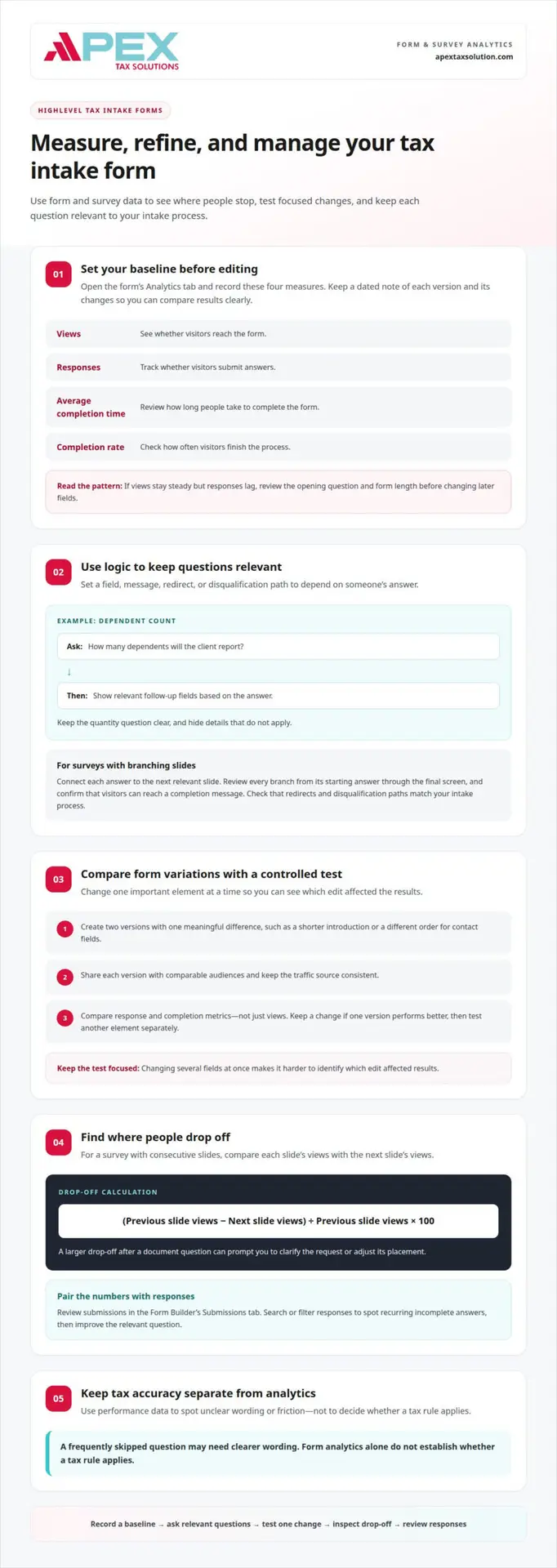
- Set a baseline before changing your form. Open the HighLevel form’s Analytics tab and record its views, responses, average completion time, and completion rate. These measures show whether visitors reach the form, submit answers, and finish the process. If views are steady but responses lag, for example, review the opening question and form length before changing later fields. Keep a dated note of each version and its changes. This gives you a clear comparison instead of relying on memory.
- Use conditional logic to ask relevant questions. Set a field, message, redirect, or disqualification path to depend on an answer. For example, ask how many dependents a client will report, then show relevant follow-up fields based on the response. Keep the quantity question clear and hide details that don’t apply. A shorter, responsive path can make the questionnaire easier to complete while helping your team collect information suited to each lead.
- Build conditional survey logic around meaningful branches. In a HighLevel survey, connect each answer to the next relevant slide. For example, a “yes” response to a household-income question can reveal a follow-up, while “no” can move the respondent forward. Review every branch from its starting answer through the final screen. Confirm visitors can reach a completion message and that any redirect or disqualification path matches your intake process. This catches dead ends before you share the survey.
- Compare form variations with a controlled split test. Create two versions with one important difference, such as a shorter introduction or a different order for contact fields. Share each version with comparable audiences and keep the traffic source consistent. Then compare HighLevel’s response and completion metrics, not just views. If one version performs better, keep that change and test another element separately. Changing several fields at once makes it harder to identify which edit affected results.
- Use drop-off data to locate friction. For surveys with consecutive slides, calculate drop-off by subtracting the next slide’s views from the previous slide’s views, dividing by the previous slide’s views, then multiplying by 100. A larger drop-off after a document question can prompt you to clarify the request or adjust its placement. Review submissions in the Form Builder’s Submissions tab, then search or filter responses to identify recurring incomplete answers and improve the relevant question.
- Keep tax content accurate as you review results. A frequently skipped question may need clearer wording, but performance data does not establish whether a tax rule applies. According to the Internal Revenue Service, the Federal Shared Responsibility Payment no longer applies starting with the 2019 plan year. Separately, according to the Internal Revenue Service, if you pay cash wages of $3,000 or more for 2026 (this threshold can change from year to year) to any one household employee, you generally must withhold 6.2% for Social Security tax and 1.45% for Medicare tax, for a total of 7.65%, from all cash wages you pay to that employee, unless you prefer to pay the employee’s share from your own funds. Keep such tax questions distinct from analytics decisions.
Embedding forms or sharing direct links
Choose where each HighLevel form or survey should appear, then test how it captures a response. Use these steps to publish it, connect submissions, and monitor the experience.
-
Embed Forms on Websites
Open a form in HighLevel and copy its embed code. Add the code to the page where you want visitors to begin, such as your tax intake page. Preview the page on desktop and mobile, then submit a test response to confirm the form loads and displays its confirmation message or redirect. If you build pages in a supported Funnel or Website Builder, create or reuse the form there instead of adding code manually.
-
Share Direct Form Links
Copy the form’s direct link to share it in an email, text message, or social post. Open the link in a private browser window to confirm it reaches the intended form without requiring a logged-in session. Then submit a test entry and review the result. Use a distinct link for each campaign or channel when you need to identify where a response originated.
- 3. Decide whether custom HTML fits your setup. HighLevel’s native form builder doesn’t let you paste a custom HTML form and connect it directly to the CRM. If your site already has a custom form, don’t assume its submissions will appear as HighLevel contacts. Use a HighLevel form’s embed code or direct link when you need submissions to enter your HighLevel process. Test that route before you share it with clients.
- 4. Configure email notifications for submissions. Set internal email notifications so your team knows when someone submits your form. You can also send an automatic response email to the person who submitted it. Keep your message aligned with the form’s purpose: for example, acknowledge an intake submission and explain the next step without suggesting that the form itself completes tax preparation. Submit a test entry and confirm that you and the submitter receive the intended messages.
- 5. Monitor your published form and survey. Check the live page or direct link after you make edits, then submit a fresh test response to catch broken fields, missing confirmations, or unexpected redirects. Review incoming submissions in HighLevel and compare responses with the source channel you used. If you change the page, test the embedded form again. For help aligning your form setup with your workflow, explore GHL form-building support.
Client onboarding and lead nurturing workflows
Connect each form submission to a clear next action. A well-planned HighLevel workflow can organize onboarding and keep follow-up relevant.
- Define your workflow’s starting point. Choose the intake form or survey that should start your process, and configure an appropriate workflow trigger. When a lead submits a form or survey, use the resulting contact record to manage next steps. For example, keep your prospect inquiry form separate from your tax document checklist so each submission starts the right workflow. Name the trigger clearly so you can identify which form initiated the contact’s next steps.
- Set a useful first response. Add an immediate acknowledgment that reflects the form your lead completed. For an initial inquiry, confirm receipt and explain the next step you want the person to take. For an onboarding form, tailor the message to that stage instead of sending a generic sales note. You can set automatic response emails for form submissions and internal email notifications to alert your team.
- Separate onboarding from lead nurturing. Treat a completed intake questionnaire differently from an inquiry that still needs a booking. For example, start an onboarding sequence after someone submits your designated onboarding form, and start a nurture sequence when a prospect requests information but hasn’t moved forward. Set clear entry conditions to avoid sending promotional follow-up to someone already progressing through onboarding. Review each workflow’s trigger and message purpose before activating it.
- Plan a measured nurture sequence. You can use a HighLevel workflow to add a lead to a 30-day nurture email campaign. Choose messages that answer likely questions and give the prospect a specific next step, such as booking a consultation. Keep each email connected to the original inquiry instead of repeating the same request. Map the sequence before activation, including the entry form, message order, and point where you want follow-up to end or change.
- Use booking activity to guide follow-up. You can set a workflow to send a follow-up SMS if a lead doesn’t book within 24 hours. Connect this action to the relevant booking step, and make your message concise, courteous, and tied to the person’s inquiry. Then test the workflow with a sample submission: confirm the contact record appears, the correct trigger starts, and each email or text follows your planned path. Adjust the sequence if your test reveals a mismatch.
Tax intake questionnaires and document uploads
- Group questions by the information you collect. In HighLevel, choose text fields for explanations, date pickers for relevant dates, and dropdowns or radio selections for defined choices. Use checkboxes when clients can select several answers. For example, group personal details, income topics, and document requests into separate sections. Clear groupings help clients understand what each question covers and help your team review submissions efficiently.
- Use conditional fields to keep questions relevant. Add a follow-up only when a client’s answer makes it useful. For example, show a related amount field after a “yes” response to a mortgage-interest question, while a “no” response moves the client forward. Make the initial question understandable on its own. Before sharing the form, test both answer paths and confirm each leads to the intended next question.
- Connect document requests to specific answers. HighLevel supports file-upload fields alongside text, date, number, and monetary fields. Place each document request beside its related question, so your client can see why you need it. For example, according to the Internal Revenue Service, the questionnaire asks taxpayers to provide Form 1095-A if they had health coverage through a government Marketplace during 2025. Use that detail to make your relevant document prompt clear.
- Make each upload request precise. Name the document you want and explain which response prompts the request. According to the Internal Revenue Service, the questionnaire asks taxpayers to provide Form 1095-B, Form 1095-C, or another proof-of-insurance document for compliant health coverage. Keep this request distinct from your Marketplace question about Form 1095-A, so your clients can match their answers to the appropriate upload field.
- Include tax questions with clear context. According to the Internal Revenue Service, the questionnaire asks whether the taxpayer or spouse made gifts in excess of $19,000 to any one donee for tax year 2025. It also asks whether taxpayers had total mortgage indebtedness exceeding $750,000 for tax year 2025. Keep the stated tax year visible in each question, and don’t imply that an intake answer alone determines how an item is treated.
- Review submissions before you use the questionnaire. Submit test answers with different responses and sample uploads, then confirm each field records the information you intended to collect. Check that conditional questions appear in the right situations and that clients can understand each document request. Review the resulting submission as your staff will, from contact details through uploaded files. This helps you find unclear wording, misplaced fields, or missing follow-up prompts before clients use the form.
How should a tax office configure consent, privacy notices, and client data retention in GHL?
Build consent and privacy into the intake experience before publishing a GHL form. Use these steps to explain collection, record choices, and manage information through a defined retention process.
- Decide what each form needs to collect. Review every field and connect it to a clear intake purpose. For example, a prospect form may need contact details and a preferred callback method, while an onboarding form may request tax information. Remove fields that don’t support the form’s purpose. Collecting less unnecessary information makes the notice easier to explain and responses easier to manage.
- Place a privacy notice near the submission point. Write a short explanation of why your office collects the information, how staff will use it, and how the person can ask questions. Keep the notice beside the submit button or relevant fields, rather than hiding it in unrelated text. Use plain language and state the form’s purpose, such as an initial tax-service inquiry.
- Separate consent choices by purpose. Use a clear checkbox for each choice that matters to your process, such as permission to receive follow-up messages. Don’t combine unrelated purposes in one vague statement. For example, distinguish a response about an active intake request from an optional choice to receive future updates. Make each label specific enough for a contact to understand what selecting it means.
- Make the form record the person’s response. Add an appropriate checkbox field and review its label, available choices, and placement in the GHL form. Test both selected and unselected responses, then inspect the resulting submission. Confirm that staff can understand the recorded choice when they review the contact later. Don’t treat a blank checkbox as permission or assume an answer the person did not provide.
- Set a retention process for submissions and files. Decide how your office classifies, reviews, and removes information it no longer needs. For example, distinguish an unconverted inquiry from an active client record, then document the retention decision for each category. Align the process across form submissions, uploaded documents, and connected systems. Don’t assume a form setting automatically defines how long every copy remains available.
- Review access and test the full experience. Have the staff who handle intake review a test submission, including its notice, consent choices, and uploaded information. Confirm that each person’s role matches the information they need to handle. Keep a written procedure for updating notices and retention decisions as your workflow changes. For help organizing these steps in GHL for Tax Offices, connect your form setup to a clear data-handling process.
APEX Tax Solutions: GHL for Tax Offices
Apex Tax Solutions LLC offers GHL for Tax Offices to help you bring intake forms and lead follow-up into a more organized workflow. Turn to it when you want to connect questionnaire submissions with contact records and plan follow-up around each lead’s next step. Contact Apex Tax Solutions LLC to discuss other needs in your tax business.
Apex Tax Solutions LLC brings software, support, and training together to help you build a process that fits your office. Contact the team to discuss GHL for Tax Offices and your intake workflow.
Make your next intake improvement count
Treat each form as part of a connected client experience. Use the responses you collect to refine how your office communicates, assigns follow-up, and prepares for onboarding. A GHL for Tax Offices form builder for intake questionnaires can support that process when you align questions, submissions, and next steps with your team’s workflow.
As your practice develops, choose tools suited to the work you handle. APEX Tax Solutions offers APEX Cloud Pro and APEX Corporate Desktop Premium, alongside GHL for Tax Offices. Connect intake improvements with the software that supports your tax preparation work to build a more consistent operation.
Ready to discuss a practical next step for your office? Contact APEX Tax Solutions and continue building a client experience that supports your growth.
Frequently Asked Questions
What Features Does the GoHighLevel Form & Survey Builder Offer?
GoHighLevel lets you create forms from a blank layout or an available template, then add fields suited to your intake process. You can use text, dropdown, checkbox, radio, date, number, monetary, and file-upload fields. Conditional logic can display or hide fields, show messages, redirect visitors, or disqualify leads based on their responses. You can also review submissions and use analytics to assess form performance.
Does GoHighLevel (GHL) support intake questionnaire forms for tax offices?
Yes. You can adapt GHL forms and surveys for tax-office intake by grouping questions into clear topics, such as contact details, household information, and requested documents. A GHL for Tax Offices form builder for intake questionnaires can also connect submissions with contact records and follow-up workflows. Keep lead-generation questions separate from detailed tax-preparation requests so each form collects information suited to its purpose.
How do you build a tax client intake form in GoHighLevel?
Start with a blank form or a template, then add only the fields needed for its specific task. For example, an initial inquiry form might ask for contact details and the type of help requested. Add conditional fields for relevant follow-up questions, provide a clear confirmation message, and submit test entries with different answers. Review each result to make sure responses appear under the correct fields.
Can GHL forms collect Social Security numbers and tax documents securely?
GHL supports file-upload fields, but that feature alone doesn’t establish that collecting Social Security numbers or tax documents through a particular form is secure. Avoid requesting sensitive identifiers in a general lead form. Before collecting tax records, define who can access submissions, how your office handles stored copies, and whether your chosen process protects the information throughout collection and review.
Does GoHighLevel support conditional logic, e-signatures, and file uploads in forms?
GoHighLevel supports conditional logic and file-upload fields. You can show relevant questions based on an answer and request a document connected to that response. Don’t assume a form submission also captures a legally usable e-signature. Treat signature collection as a separate step in your intake process, and clearly distinguish a completed questionnaire from any document that still needs signing.
How can tax offices automate intake reminders and follow-ups in GHL?
Use a form-submission trigger to start the workflow that matches the lead’s next step. For example, you can send an acknowledgment after an inquiry, then use a booking-related condition to guide follow-up. A GHL workflow can send an SMS if a lead doesn’t book within 24 hours, or add a lead to a 30-day nurture email campaign. Test the sequence with a sample contact before activation.