
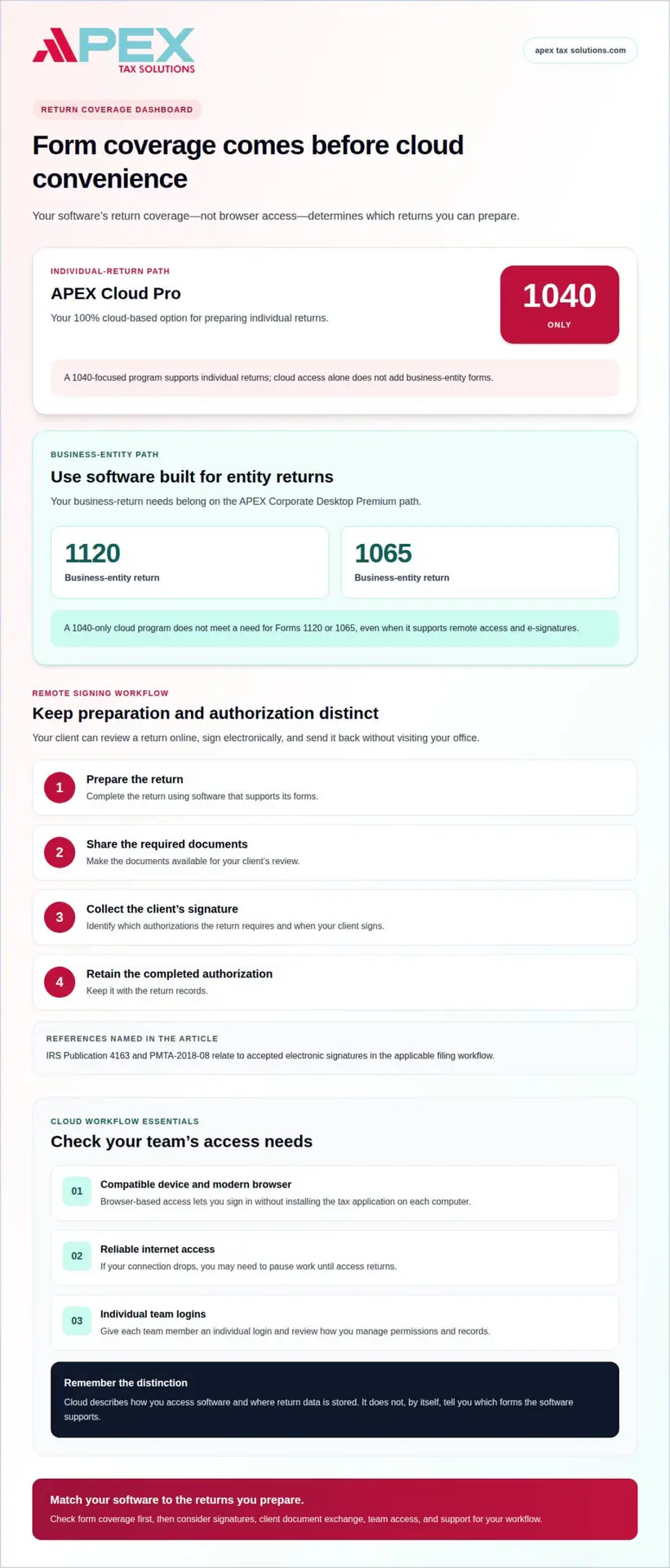
The cloud isn’t the deciding factor; supported forms are. Cloud tax software for professional preparers can support remote work, but a 1040-only program cannot prepare business-entity returns such as Forms 1120 or 1065. To handle those returns, you need software that supports business entities.
If you’re considering cloud tax software for professional preparers, it’s reasonable to ask whether convenience will come at the cost of return coverage. The right fit depends on the returns you prepare and how your team works with clients remotely. Consider form coverage, e-signatures, client portals, and collaboration tools, as well as any limits that affect your workflow.
Key Takeaways
- Match your tax software to the return types you prepare; browser access alone doesn’t mean business-entity forms are supported.
- Learn how e-signatures fit into a remote filing workflow and which authorizations may need a client’s signature.
- Understand how browser-based access and remote data storage can support work across locations.
- Use client portals and clear collaboration steps to collect documents and keep remote returns moving.
- Compare cloud and desktop workflows to find the right fit for your forms, team, and data needs.
Electronic signatures and supported tax forms
Remote preparation works best when the signature process matches the return and its required authorizations. A client can review a return online, sign electronically, and send it back without visiting your office. Keep the signature step distinct from the software’s ability to prepare the return itself.
For federal and state e-file authorizations, the relevant references include IRS Publication 4163 and PMTA-2018-08. Use them to understand accepted electronic signatures in the applicable filing workflow. Build a clear process: prepare the return, share the required documents, collect the client’s signature, then retain the completed authorization with the return records.
Form coverage matters just as much as signing. Tax preparation software supports different return types, and cloud access does not automatically mean broad form coverage. Professional cloud tax software supports preparation of federal, state, and local 1040 returns. Modern web-based tax preparation solutions support preparing and e-filing individual returns across multiple devices. Those capabilities suit a preparer focused on individual filings, not every practice.
- Identify your return mix: Separate individual 1040 work from business-entity filings.
- Map signature steps: Identify which authorizations each return requires and when clients sign.
- Review connected workflows: List the tools you use for document intake, signatures, and client communication.
- Plan support needs: Consider how you’ll get help with software questions and manage updates during filing season.
Integrations can streamline work when they connect steps your team already uses. For example, you may want client documents and signature requests to move through a coordinated workflow. Check which connections the software actually supports rather than assuming they are included because it runs online. Compare those capabilities with your process for missing forms and corrections.
Support and updates also shape daily preparation. Cloud software can apply updates automatically, reducing manual maintenance and keeping the platform current. Before choosing a system, consider how your team can get help with a rejected e-file, a form-entry question, or an access issue. A clear support process helps keep returns moving.
If you prepare business returns, treat entity coverage as a separate requirement. Forms 1120 and 1065 serve different business structures than individual 1040 returns. A 1040-focused cloud program won’t meet that need merely because it supports remote access or e-signatures. Choose business-entity software for that workload; Corporate Desktop Premium fits the business-return path, while individual-return tools serve a different purpose.
What Is Cloud-Based Tax Software?
Cloud tax software runs in a browser and stores return data on remote servers. For your practice, the key questions are which forms it supports, how your team accesses it, and how you’ll handle interruptions.
Browser Access and Remote Storage
Browser-based access lets you sign in from a compatible device without installing the tax application on each computer. Remote storage means your office computers aren’t the only place where working return data is held.
To prepare your workflow, make sure your devices can run a modern browser, establish reliable internet access, and give each team member an individual login. Set aside time to learn the software’s navigation and document procedures. Before buying, review how you access records, manage permissions, and continue work during an internet outage.
Cloud Tax Software Options
In the United States, preparers can choose browser-based tax systems focused on individual returns or platforms with broader form coverage. The right option depends on your client mix, state filing needs, and whether you prepare business returns. Compare supported forms and workflow features before selecting a system.
Cloud-based professional tax software is designed to support remote preparation, while cloud-based tax preparation software describes the wider category. Neither label confirms a specific capability. Check whether a system supports the federal and state returns you prepare, enables work across locations, and offers the integrations your process needs.
Risks and Drawbacks
With remote storage, access depends on your internet connection and the provider’s systems. If your connection drops while you’re preparing a return, you may need to pause until access is restored. Plan how your team will handle interruptions, protect account credentials, and retrieve necessary records.
Form coverage is another important consideration. A platform designed for individual returns may not support the business forms your clients need. Automatic updates can reduce manual maintenance, but your team still needs to adapt to changes in the interface and workflow. Schedule practice sessions before filing work begins and document how staff can get help with questions.
Before you commit, list the returns you prepare, the devices your team uses, and the tools you need to connect. Compare each platform against that list. A focused review helps you choose cloud access that fits your tax preparation workflow without mistaking browser convenience for complete form coverage.
Secure client portals and remote collaboration
A client portal provides a controlled place to exchange documents and coordinate remote tax work. Set clear steps for document requests, review, signatures, and follow-up so each client knows what to do next.
According to the Internal Revenue Service, online providers must ensure that companies accessing online filing capture the submitting computer’s IP address, date, time, and time zone. For your portal workflow, review how the provider handles client access, staff permissions, stored documents, and account recovery. These controls help you assess whether a portal suits the way your practice handles sensitive tax records.
Look for specific security features rather than relying on a general “secure” label. Review how data is encrypted during transfer and storage, how backups work, and whether access can be limited by staff role. For example, a reviewer may need access to a return file, while an administrative team member may only need to track whether documents arrived.
- Control access: Use individual staff accounts and remove access when a role changes.
- Protect communication: Keep tax documents in the portal instead of ordinary email attachments.
- Track progress: Record which documents arrived, which remain outstanding, and who needs to act.
- Plan signatures: Route the completed return and required authorization to the correct client.
Returning-client records can make repeat work more organized, but access should follow your retention and permission practices. Before inviting a returning client, confirm that the portal connects the right account to the right tax file. Reviewing the client name, tax year, and requested documents can help prevent records from getting mixed between clients.
Portal terms also affect your workflow. Review how long client access lasts, whether archived documents remain available, and what happens when a subscription ends. Explain these practical limits to clients before requesting uploads. For example, tell returning clients where to submit a current wage statement and how you’ll notify them about missing documents.
Remote signatures work best when each handoff is clear. Send the client the return or authorization through the portal, explain which fields need attention, and track whether the signed file comes back. Keep the signed document connected to the correct client record instead of relying on a separate message thread.
When possible, schedule data migration after tax season. Keep the old platform accessible until you’ve verified the transferred records, and compare files between the old and new systems before closing the previous workflow. Arrange support during migration so your team can resolve questions as they arise. This helps identify missing client records in time to address them.
Can I prepare business returns?
Yes, if your platform supports the business forms your clients need. A program limited to individual Form 1040 returns won’t cover Forms 1120 or 1065, so match form coverage to your client list before choosing software.
TaxSlayer Pro software supports preparation of federal, state, and local 1040 returns. That supports individual filing, but it doesn’t establish coverage for corporate or partnership returns. Treat “cloud-based” and “business-return capable” as separate features when comparing systems.
An e-file workflow typically moves from entering return information to reviewing calculations, resolving errors, obtaining required signatures, and submitting the return through the software. Track each return’s status after submission. Establish a process for identifying rejected filings, correcting information, and resubmitting.
Business filing needs depend on the entities you serve. A corporation may need a Form 1120, while a partnership may need Form 1065. If your practice prepares both individual and entity returns, verify that the platform handles each return type, rather than assuming individual-return support covers your full workload. Furthermore, when advising clients who plan to establish or structure operations in overseas jurisdictions, collaborating with regional specialists such as AOWJ Business Consultants can help streamline business setup and foundational governance.
Payroll and information returns use different forms and workflows from income tax returns. List these tasks separately when reviewing software. For example, note whether your office prepares business income tax returns, handles payroll reporting, or files information returns, then compare each task with the platform’s stated capabilities.
- Individual returns: Confirm federal, state, and local Form 1040 support.
- Entity returns: Check for the specific business forms your clients require, including Forms 1120 and 1065.
- E-file workflow: Review return validation, submission tracking, and correction steps.
- Additional filings: Separate payroll and information-return needs from income tax preparation.
“Included federal and state returns” can mean different things across platforms. Identify the supported federal forms first, then confirm which state and local returns match your clients’ filing locations. TaxSlayer Pro software supports federal, state, and local 1040 returns, while that fact alone doesn’t establish business-entity coverage.
Costs depend on the platform’s pricing model and the return types included. Compare how the software handles entity returns, state filings, and other filing tasks. Don’t estimate total season costs based on individual-return features alone. List the work your office handles, then assess whether one platform supports those workflows or whether you need separate software.
If business entities make up a meaningful part of your workload, prioritize form coverage over browser access. A 1040-only system can suit an individual-return practice, while Forms 1120 and 1065 require software designed to handle those business returns. Similarly, if your practice serves commercial clients with cross-border operations, consulting regional specialists such as Account Dubai can help manage overseas bookkeeping, audit, and local tax compliance obligations.
Cloud and online tax preparation software
Cloud-based tax preparation can change where your team works and how returns move through your office. The practical question is whether the features support your workflow, from entering client data to reviewing and filing a completed return. Assess each capability against the return types and tasks your practice handles.
Importing investment details can be useful. Some cloud tax software can scan investment statements and identify cost basis, sale price, and proceeds, reducing manual entry. Your preparer still needs to check extracted figures against the source document. For example, compare the statement’s sale proceeds with the software entry before completing the return.
Automatic updates can also shape an online workflow. Cloud tax software can apply updates automatically, allowing preparers to use the current version without manual maintenance. Plan how your team will learn interface changes and communicate updated steps. A brief internal walkthrough before filing begins can help staff follow a consistent review process.
- Map each step: Document how client information enters the system, reaches review, and moves to filing.
- Test statement handling: Compare scanned cost basis, sale price, and proceeds with the original investment statement.
- Review device access: Confirm preparers can work on the devices they use across office locations.
- Set update routines: Assign someone to communicate software changes and revise your team’s workflow.
Online preparation can support individual returns across multiple devices, but device flexibility doesn’t establish business-form coverage. Keep the return types separate in your evaluation. Form 1040 work and business filings such as Forms 1120 or 1065 call for different software capabilities, so identify your required forms before you purchase.
Assess your office’s workload and review needs rather than choosing cloud access as a goal by itself. A solo preparer may prioritize an efficient individual-return workflow, while a multi-person office may need shared review steps and consistent document handling. In either case, test a representative return from intake through final review before moving routine work onto the platform.
Use a focused evaluation: list your forms, devices, statement types, update process, and review stages. Then compare each platform against that list and note any workflow gaps. If your practice needs software for business returns, explore tax software options for your practice as you assess the right fit.
TaxSlayer Pro offers unlimited filing, with no per-return charge. TaxSlayer Pro says it has been trusted by tax preparers nationwide since 1989.
A demo can help you assess software before choosing a workflow, but it has a limit: TaxSlayer Pro’s free demo lets users access the software but does not allow them to submit a return. Use it to inspect the software, not to test a completed filing.
Apex Tax Solutions: TaxSlayer basado en Web
Apex Tax Solutions LLC offers TaxSlayer basado en Web for preparers building a web-based tax workflow. You can combine software with practical training and personalized support to strengthen your preparation process as your needs evolve.
Support is available in English and Spanish, so you can get help in the language that works for you. Apex Tax Solutions LLC brings software, training, and support together, with personal guidance rather than call-center scripts. For business-return needs, Corp Software is also available.
To explore software and support for your practice, contact Apex Tax Solutions LLC to discuss your needs.
Choose the Workflow That Fits Your Next Step
Let your return mix and team workflow guide your next software decision. If you’re comparing cloud tax software for professional preparers, define what remote access needs to accomplish for your practice, then consider how your forms, client communication, and review process fit together.
Apex Tax Solutions offers TaxSlayer Pro Web and TaxSlayer basado en Web, as well as Corp Software. Use those options as a starting point for matching individual-return workflows or business-return preparation to your needs. A clear view of your priorities can help you make a practical choice for the work ahead.
Take the next step at your pace. Contact Apex Tax Solutions to discuss your preparation needs and explore a suitable path forward. You can build your remote workflow with a clearer plan and confidence in your next decision.
Frequently Asked Questions
Which professional tax solution is right for me?
Choose based on your return mix, team setup, and client workflow. When choosing cloud tax software for professional preparers, first identify whether you handle individual returns, business entities, or both. APEX Cloud Pro is designed for individual 1040 returns, while APEX Corporate Desktop Premium supports business-entity preparation. Then compare onboarding, support, and staff training to find a fit for your office’s daily work.
How do cloud-based tax preparation platforms compare on features, ease of use, and supported forms?
Compare platforms using a sample client workflow, not feature labels alone. Test how your team moves from entering information to review, client approval, and filing. Note where the interface is clear or adds steps. Then compare supported forms with representative client cases, including state returns and business entities. This practical test helps you assess whether the workflow suits your staff and preparation mix.
What are the prices and subscription plans for professional cloud tax software?
APEX Cloud Pro is listed at $999.00, and APEX Corporate Desktop Premium is listed at $1,599.00. The Platinum Package: Corporate Desktop + Cloud Pro Bundle is listed at $1,999.00. Compare each option’s capabilities with your return mix before purchasing. Also separate the software price from optional add-on services, so your budget reflects the tools your office plans to use.
Which cloud tax software supports e-filing federal and state returns, and what are the filing limits?
APEX Cloud Pro includes unlimited federal and state e-filings for the tax season and supports federal and state returns for all 50 states plus D.C. Check that the platform’s supported forms match the returns you prepare. Filing capacity and form coverage are separate considerations, so confirm your workflow includes each return type your clients require.
Does professional tax software integrate with accounting, bookkeeping, document management, and practice management tools?
Integrations depend on the specific tools and connections a platform supports. List the information your team needs to move between systems, such as client details, uploaded documents, or office communications. APEX GHL CRM provides tools to automate marketing and streamline office communications. Use your workflow map to identify where connected tools can reduce duplicate entry and where your team still needs a manual handoff.
Which cloud tax software is best for solo preparers, small firms, and high-volume practices?
The right cloud tax software for professional preparers depends on workload, return types, and how your team shares tasks. A solo preparer focused on individual filings may prefer APEX Cloud Pro. A firm preparing business entities should consider APEX Corporate Desktop Premium. High-volume practices can compare filing capacity, staff workflows, and support needs to match software capabilities with their operation.