
What if your booking page let clients choose convenient appointment times without opening every spot on your calendar? Automating tax appointment scheduling lets you control availability, organize appointments by return type, and send reminders that help clients stay on track.
Tax season brings a steady flow of appointments, but you still need control over your availability and time to prepare. A well-planned scheduling process makes booking easier for clients while keeping your calendar aligned with your team’s capacity.
This guide explains how to manage public booking availability, reduce no-shows with timely reminders, and collect useful client details before a meeting. You’ll also learn what to consider when connecting scheduling tools with accounting or practice software, so each step supports a smoother workflow.
Key Takeaways
- Keep a public booking page from overfilling your calendar by setting availability around your team’s capacity and separating appointment types.
- Use a confirmation and a small number of timely reminders to help clients remember appointments and arrive prepared.
- Collect essential intake details and let clients know which documents to bring before they book or meet with you.
- Review how scheduling tools sync with your calendars and practice software so appointments fit your existing workflow.
- Compare scheduling options by the controls and connections your tax office needs, not just by how quickly clients can book.
Which scheduling tool is best for reducing tax-season no-shows?
Choose a scheduling tool that sends confirmations, timed reminders, and clear rescheduling instructions. Automated reminders can support attendance, but accurate availability and clear appointment details matter too.
Automated Reminder Timing and Confirmations
Send an automatic confirmation as soon as a client books, then schedule one or two reminders before the appointment. A reminder the day before can highlight the appointment time, location, and rescheduling link. This gives clients a clear way to act if plans change, rather than leaving an empty calendar slot.
Send a separate reminder a few days ahead when clients need to prepare documents. Keep each message focused: confirm the consultation, then list the documents or next step. Review timing for each appointment type so new clients get useful preparation details without repetitive messages.
Text, Voice, and Email Reminders
Offer text and email reminders, and use voice reminders when they suit a client’s preferences or contact details. Texts work well for brief updates, such as a time change or rescheduling link. Email allows for fuller instructions, while a voice call can help clients who prefer spoken reminders.
Ask each client for their preferred contact method during booking, and make messages recognizable by naming your tax office. Keep reminders free of sensitive tax details. For example, say “Please bring your tax documents” instead of listing income or account information.
Scheduling Software Costs and Limitations
Tax appointment scheduling software costs vary with features, billing model, number of users, and connections to other systems. Compare what each plan includes, such as reminders, calendar controls, and client intake fields. Choose an option that fits your workflow without paying for functions your office won’t use.
In the United States, treat appointment records and client details as sensitive information. Limit staff access, collect only what you need, and use secure methods to share documents. Applicable privacy and security requirements depend on the information and your business. Avoid putting tax details in ordinary reminder messages.
Automation has limits. Incorrect availability can create double bookings, while outdated contact details can prevent reminders from reaching clients. Review the booking calendar, test messages, and establish a staff process for missed confirmations or urgent changes. Automation can reduce manual follow-up, but it can’t ensure every client attends.
To choose a tool, test one appointment type first. Book a sample consultation, confirm that the calendar blocks the time, and check that each reminder arrives as intended. Then see what happens when someone cancels or reschedules. A reliable setup makes the next available slot clear and gives your team a way to respond when automation cannot resolve an issue.
Client intake questions and booking types
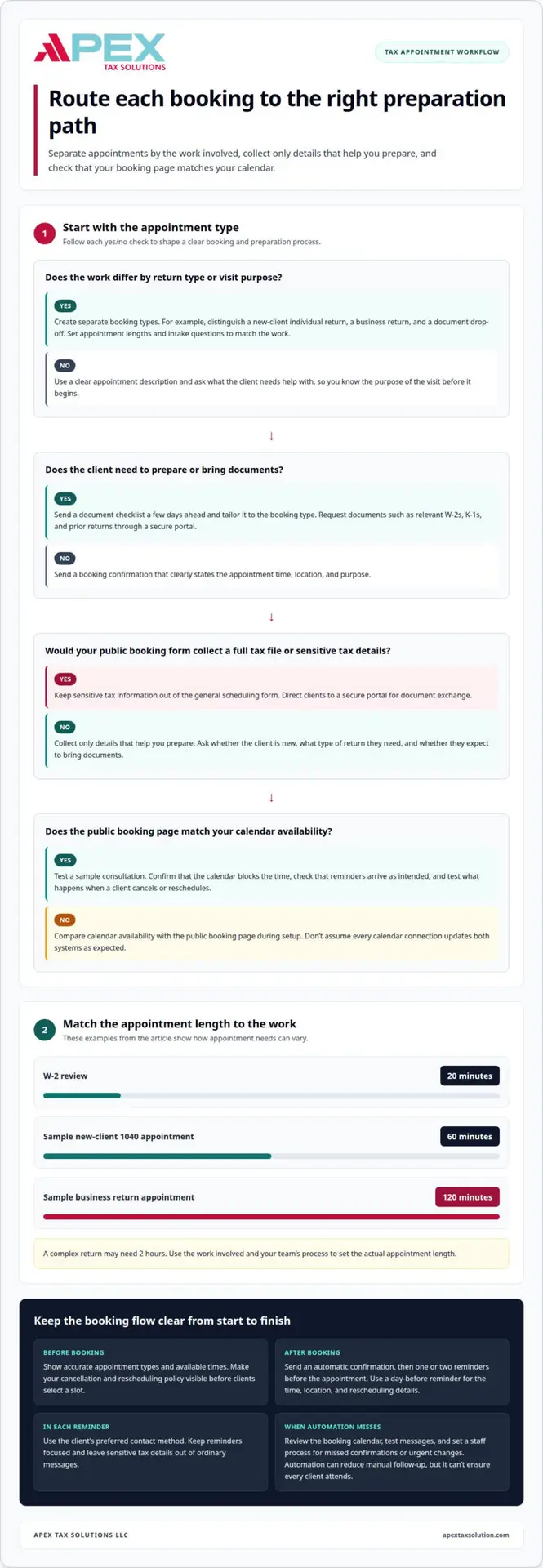
Separate bookings by the work involved, then collect only details that help staff prepare. A new-client individual return, a business return, and a document drop-off need different appointment lengths and intake questions.
A small firm can start with two or three appointment types that generate the most scheduling traffic. For example, create a new-client 1040 appointment and a business return appointment. A sample setup uses 60 minutes for a new-client 1040 and 120 minutes for a business return. Actual appointment length should reflect the work and your team’s process.
Use booking questions to clarify the purpose of the visit, not to collect a full tax file in a public form. Ask whether the client is new, what type of return they need, and whether they expect to bring documents. Keep sensitive tax information out of general online scheduling forms. Direct clients to a secure portal for document exchange.
Appointment needs can vary widely. A W-2 review may take 20 minutes, while a complex return may need 2 hours. If a client books a 60-minute tax preparation appointment but arrives without required documents, the meeting may become time for gathering paperwork rather than reviewing the return. Explain the appointment purpose and preparation steps in the confirmation.
Give clients a clear document checklist before they show up. For example, request relevant W-2s, K-1s, and prior returns through a secure portal before the meeting. Send the checklist a few days ahead, and make it specific to the booking type. A client with a business return may need different preparation guidance than someone booking a W-2 review.
Self-scheduling works best when clients see accurate appointment types and available times. Let them cancel or reschedule through the booking process, and make your policy visible before they select a slot. If your office uses Google Calendar, compare its availability with the public booking page during setup. Don’t assume every calendar connection updates both systems as expected.
Link each appointment to a client record and preserve useful history, such as appointment type, date, and attendance. Staff can then see whether a returning client needs a new intake or follow-up. Restrict access to records and keep document storage separate from basic scheduling details.
For firms building a more consistent intake workflow, tax office software and support from Apex Tax Solutions LLC can be a relevant next step for automating tax appointment scheduling.
Do these tools connect to accounting or practice software?
Online booking can connect scheduling with calendars and practice software, but available integrations vary by tool. For tax professionals and accountants, the goal is a workflow that moves an appointment from booking to staff preparation without re-entering basic details.
Start by mapping what information should move between systems. A booking might add the client’s name, appointment type, date, and contact details to a calendar or practice record. Keep sensitive tax documents in the secure system your office uses for those files, rather than treating a calendar entry as a document repository.
Before choosing an integration, distinguish calendar synchronization from client-record synchronization. A calendar may show when a preparer is busy without transferring intake answers into practice software. Trace a sample booking from the public page through the calendar and into the client record, noting where staff still need to enter information.
Use tax-season email campaigns to direct clients to the right appointment type. For example, an email can explain that returning clients should choose a follow-up slot, while new clients should select an initial consultation. Link each message to the relevant booking option, and keep instructions consistent with the appointment workflow staff actually follow.
Encourage early booking by opening suitable availability before demand peaks. A campaign can remind returning clients to schedule, explain what each appointment covers, and provide a clear rescheduling path. Avoid promising a particular appointment time in an email. The live booking calendar should show the openings clients can select.
Test the full workflow during the first few weeks after implementation. Book a sample appointment, change its time, cancel it, and confirm the calendar and practice record reflect each action correctly. Ask staff where duplicate entry or missed updates occur, then adjust messages, time blocks, or data fields based on what you learn.
If you take payments or deposits during booking, treat that as a separate workflow decision. Confirm that the scheduling system supports the payment step your office plans to use, and define how staff will record a completed or failed transaction. Keep payment instructions clear, and don’t collect sensitive financial details in ordinary emails or calendar notes.
Once the integrations work, review the process with your team during the first few weeks. Track practical issues, such as duplicate calendar entries, missing client records, or reminders tied to the wrong appointment. These checks help refine the system without assuming every platform shares the same data automatically.
TL;DR: Which scheduling software is best for accountants and bookkeepers?
Choose a platform that keeps your calendar accurate, applies buffers, and routes bookings to the right staff member. During tax season, those controls help protect time for filing work and client appointments.
Calendar Synchronization
A calendar integration should reflect booked appointments and existing commitments in the right places. Test whether a new booking blocks the assigned preparer’s calendar and whether a change or cancellation updates it. For example, create a test meeting, move it, then confirm the calendar shows the new time without a duplicate entry.
Check which direction information syncs. A platform might read busy times from a staff calendar but not write new bookings back to it. Confirm how the connection handles shared calendars, time zones, and staff changes before opening public availability.
Calendar Availability and Buffers
Set bookable hours around your team’s schedule, then add buffers for preparation, travel, or follow-up. A buffer gives you time to review a client record before the next meeting. Make sure the platform applies that gap between appointments rather than displaying it as a separate slot clients can select.
Match appointment duration to the work. A 30-minute simple-return appointment shouldn’t land in a 2-hour complex-return slot. Separate appointment types and availability rules help prevent mismatches while keeping your calendar useful during busy filing periods.
For multiple accountants, connect each booking type to the staff calendar suited to it. A returning individual client might go to one preparer, while a business return goes to a team member with the right expertise. If several staff members can handle the same appointment, define whether the platform assigns the first available person or lets clients choose.
Review team calendars together before publishing availability. Block staff meetings, planned time away, and internal work that shouldn’t appear as open booking slots. Then compare the public schedule with each staff member’s calendar to prevent overlapping commitments and double bookings.
During setup, test the complete process with a sample appointment. Book a slot, confirm it appears on the right calendar, and check that the buffer remains protected before the next opening. Repeat the test after changing staff assignments or availability rules. A review during the first few weeks can reveal missed updates and help your team adjust time blocks.
The best scheduling platform fits your staffing and appointment workflow. Prioritize dependable calendar updates, clear availability controls, and routing that matches the work. These practical checks help accountants and bookkeepers maintain a usable schedule through tax season without treating every opening as interchangeable.
Scheduling software options for tax preparers
The right scheduling software should support your office workflow, not simply offer the longest feature list. A solo preparer may need a straightforward booking page, while a growing office may need staff routing and links to client records. Map how a client moves from choosing an appointment to meeting the assigned preparer. That clarifies which software functions matter.
Compare standalone scheduling software with tools built into calendar or practice-management platforms. A standalone option may focus on availability, booking changes, and notifications. A broader platform may connect scheduling with client records, but integrations vary. For automating tax appointment scheduling, identify which details should transfer and which staff tasks should remain manual.
Test the workflow with a sample client journey. Create a booking, change its appointment type, then cancel it. Confirm the assigned staff member sees the update and the client receives the right message. Check that the appointment history stays clear, especially if someone books again after canceling. These steps reveal gaps that a feature list alone won’t show.
Appointment duration controls also matter. A 30-minute simple-return appointment shouldn’t occupy a 2-hour complex-return slot. Set distinct durations and availability rules for each service, then review how the platform displays those options to clients. Clear labels help clients select a suitable meeting without asking staff to correct the booking later.
For a team, examine how scheduling software assigns appointments. It may let clients choose a specific preparer, route them to the next available staff member, or direct certain work to a designated team. Test each route with sample staff calendars. Also confirm that internal meetings and blocked work time remain unavailable for public bookings.
Review how the platform handles canceled openings. An automated waitlist notification can give another client the chance to claim a released slot. Check whether staff control which appointment types can fill that opening and whether the new booking updates the calendar correctly. These details can reduce manual coordination during busy periods.
Before adopting a platform, assess its intake fields, access controls, and recurring appointment options. A quarterly estimated-tax reminder, for example, may need a different schedule from a one-time return appointment. Start with the needs your office handles most often, then evaluate results with staff before expanding the workflow.
Apex Tax Solutions
Apex Tax Solutions helps tax professionals strengthen their operations with tax software, service-bureau support, and cybersecurity training. These offerings can complement your office’s scheduling workflow and the systems you use to serve clients.
- Corp Software: Supports your tax preparation operations.
- Service Bureau Partner Program: Provides a partnership option for tax businesses.
- Wisp & Cybersecurity Training: Supports your team’s cybersecurity learning.
Consider which support aligns with your practice’s goals. Contact Apex Tax Solutions to discuss your business needs.
Build a booking process that grows with your practice
Your scheduling workflow can evolve alongside your tax practice. As client and team needs change, review how automating tax appointment scheduling fits your operations and the tools you use to serve clients.
For tax preparation software, Apex Tax Solutions offers APEX Cloud Pro and APEX Corporate Desktop Premium. Consider which option aligns with your practice’s needs as you plan your next steps.
Contact Apex Tax Solutions to discuss your business goals and find a path forward with confidence.
Frequently Asked Questions
Can I stop a public booking page from filling my calendar during tax season?
Yes. Publish only the appointment windows and types your office can handle, and close booking when staff capacity is full. You can also reserve blocks for return preparation or team work. For example, keep a preparer’s review time unavailable to clients, even if the calendar shows open space elsewhere. Revisit the settings as staffing and filing demand change.
What are the best tools for automating tax appointment scheduling?
The best fit is a tool that matches your office workflow, not simply the one with the most features. Look for appointment-type controls, staff calendar connections, client booking changes, and reminder options. Then test a sample appointment from booking through cancellation. If a feature requires duplicate data entry or creates unclear handoffs, it may not suit your team’s daily process.
How do tax firms integrate appointment scheduling with tax preparation software and calendars?
Start by identifying which details need to flow to each system. For example, a calendar entry may need the client’s name, assigned preparer, and meeting time, while tax preparation software holds return-related records. Test a sample booking and confirm each system displays the information staff need. Keep document exchange in the appropriate secure workflow, rather than placing files in calendar notes.
How can clients book, reschedule, or cancel tax appointments automatically?
Use a public booking page with clear appointment choices and a confirmation that includes instructions for changes. Set a rescheduling cutoff that gives staff time to reuse an opened slot, and route urgent changes for staff review. For example, a client who cancels through the booking page should receive confirmation, while the released time becomes available according to your office’s scheduling rules.
What reminders and follow-up messages reduce tax appointment no-shows?
Send a confirmation as soon as the client books, then make later messages useful rather than repetitive. A message can clarify whether the appointment is in person or remote, identify the office contact, or explain how to notify staff about a delay. After a missed meeting, send a neutral follow-up with instructions for arranging another appointment instead of assuming why the client did not attend.
How should tax firms manage appointment availability during peak filing season?
Protect time for both client meetings and return work. Set availability based on staff schedules, block internal commitments, and match appointment types to the work involved. Review open slots as your team’s workload changes. If urgent requests need review, direct them to staff instead of making every calendar opening available for immediate self-booking.
What information should a tax appointment booking form collect?
Keep the form focused on routing and preparation. Ask for the client’s name and contact details, whether they’re new or returning, the appointment purpose, and preferred meeting format. Avoid requesting detailed income or account information on a general booking form. Use the answers to assign the right appointment type, then provide instructions for sharing tax documents through your office’s secure process.
How can automated scheduling handle different appointment types, staff, and office locations?
Create a separate booking option for each distinct service, then connect each option to the relevant staff calendars and meeting details. For example, route business-return consultations to the designated team and show clients the correct meeting location. If staff serve multiple offices, label each location clearly in the booking flow and include it in appointment confirmations to prevent confusion.