
What if a secure remote setup depends less on adding technology and more on where your tax work lives? If you’re comparing cloud software, remote desktop, and VPN access, it’s understandable to worry about exposing sensitive client information when you work away from the office. Choosing secure remote access for tax preparers starts with matching your access model to your workflows and team.
You need an approach that fits the returns you prepare and gives everyone clear, consistent security practices. APEX Cloud Pro is a 100% cloud-based, 1040-only option for remote and multi-office teams. If your business prepares entity returns, APEX Corporate Desktop Premium is a Windows-installed suite with offline capabilities and local data control.
This guide compares common remote-access approaches and walks you through practical setup decisions, from choosing how your team reaches tax software to establishing habits that help protect client data. You’ll also learn how WISP and cybersecurity training can support a more consistent security approach across your office, remote staff, and locations.
Key Takeaways
- Choose secure remote access for tax preparers by identifying where your applications and files live and how your team needs to reach them.
- Compare cloud software, remote desktops, and VPN-supported network access to understand how each handles connections and file movement.
- Start by listing users, devices, applications, and return workflows, then assign individual accounts with role-appropriate permissions.
- Build consistent access habits across office and remote work so your team can handle client information carefully.
- Connect your software decisions with practical support and cybersecurity training to strengthen your remote-work approach.
Why Secure Remote Access Matters for Tax Preparers
Your work doesn’t always stay at one desk. You may prepare a return from home, review work at another office, or handle administrative tasks away from your main location. Secure remote access for tax preparers helps you reach the work systems you need while keeping access deliberate and controlled.
Remote access can mean different things. With a cloud application, you sign in to software hosted online. With remote desktop access, you control an office computer from another device, so applications and files may remain on that computer. The access method alone doesn’t determine how safely your team handles client information.
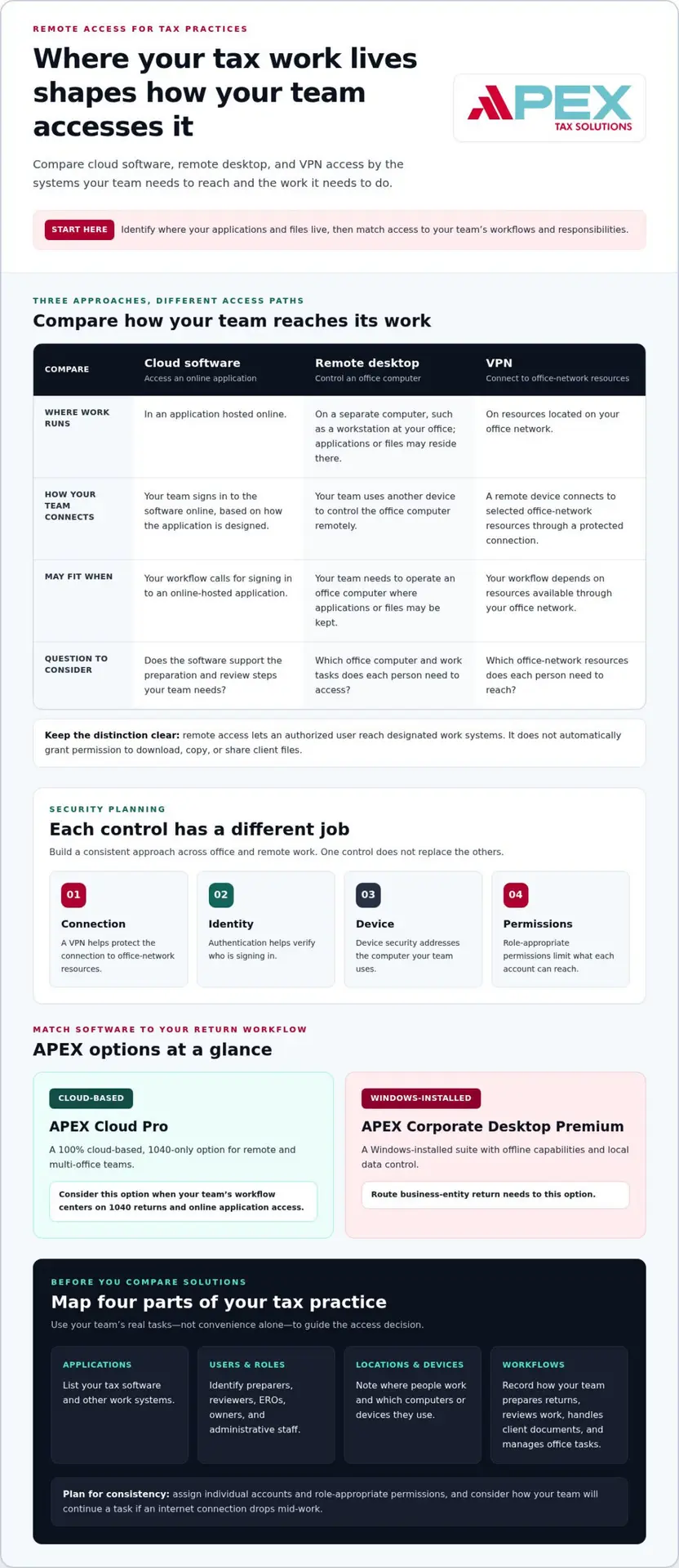
Remote access lets an authorized user reach designated work systems from outside the office; it does not automatically grant permission to download, copy, or share client files. Keep that distinction clear as you decide what each person needs to access and what they should be able to do with information.
What makes tax-preparer remote access different?
Your team works with personal and financial details that clients share for tax preparation. That makes access decisions more than a convenience question. Consider which systems hold client records, who needs them, and how each person will work outside the office.
Seasonal staffing and multiple locations can add complexity. A preparer may need tax software, while an owner or ERO, the person responsible for an electronic filing operation, may also oversee office activity. A setup that feels quick to use isn’t automatically appropriate for every role or workflow.
Which work tasks need remote access?
Start by separating the work. Tax preparation, return review, client-document handling, and office administration may involve different applications, people, and permissions. A preparer who enters return information may not need the same access as an owner who reviews operations or manages staff.
Before comparing solutions, make a short inventory of your needs:
- Applications: List the tax software and other work systems your team uses.
- Users and roles: Identify preparers, reviewers, EROs, owners, and administrative staff.
- Locations and devices: Note where people work and which computers or devices they use.
- Workflows: Record how your team prepares returns, reviews work, handles client documents, and manages office tasks.
This inventory gives you a practical basis for comparing access models. You can focus on the tasks your team needs to complete, rather than choosing a setup based on convenience alone.
How Secure Remote Access Works: Cloud Software, Remote Desktops, and VPNs
Start with a practical question: does your team need to sign in to an application, operate an office computer, or reach resources on your office network? These approaches can support remote work, but they place applications and files in different locations and give users different ways to connect.
With cloud software, your work runs in an online-hosted application you sign into; with remote desktop, it runs on an office computer you control remotely; with a VPN, your device connects to resources on your office network. Keep that distinction in view as you decide which tasks staff need to perform and how they should handle information.
Cloud tax software and remote desktop access
Cloud software gives you access to an application through an online sign-in, based on how that software is designed. Remote desktop access lets you operate a separate computer, such as a workstation at your office, where applications or files may reside. The first connects you to an application; the second gives you remote control of a computer.
Consider how each workflow fits your team’s routine. Map how staff move between preparation and review, whether their devices support the steps they need to complete, and what they will do if an internet connection drops mid-task. Cloud access still requires individual accounts, appropriate permissions, and sound security practices.
Where a VPN fits in a tax office
A virtual private network, or VPN, can create a protected connection between a remote device and resources on your office network. It may suit a workflow that depends on network resources at the office. A VPN is one part of an access setup, not a complete security program.
Each control addresses a different question: a VPN helps protect the connection; authentication helps verify who is signing in; device security protects the computer being used; and permissions limit what an account can reach. One control doesn’t replace the others. Review IRS Publication 4557 for IRS guidance on safeguarding taxpayer data, and consider how its recommendations apply to your systems and workflows.
- Cloud application: Your team signs in to the application online.
- Remote desktop: Your team controls an office computer from another device.
- VPN: Your team connects to selected office-network resources through a protected connection.
Use these distinctions to align your access model with the work staff need to do and the systems they need to reach. If you’re evaluating remote-ready tax software, explore APEX tax software options as part of your planning.
How to Compare Remote-Access Options for Your Tax Practice
No single access model fits every tax office. Compare each option against your return mix, office structure, staff responsibilities, file-handling practices, and need to work during interruptions. A decision matrix can help you identify trade-offs before you commit to a setup.
| Decision factor | Cloud software | Remote desktop | VPN-supported network access |
|---|---|---|---|
| Return types | Check which forms the application supports | Consider the software available on the office computer | Consider which tax applications your network makes reachable |
| Office structure | Assess how staff coordinate work across locations | Plan who uses each workstation and when | Identify which network resources each location needs |
| Staff roles | Review account and permission options | Decide who may control the workstation | Define which users may reach each network resource |
| Files and continuity | Understand the application’s document workflow | Review how remote sessions handle local files | Consider file access and what staff do if network access is interrupted |
Match the access model to your return types and office structure
Use return types as a practical filter. APEX Cloud Pro and APEX Corporate Desktop Premium serve different tax-office workflows, so base your product decision on the returns your team prepares and how your staff need to work. APEX Cloud Pro is a 1040-only solution, while entity-return needs point to APEX Corporate Desktop Premium.
Then consider how many locations your team operates and how staff divide preparation, review, and oversight. A team with separate preparers and reviewers should plan for handoffs between those roles, while a smaller office may prioritize straightforward day-to-day access. Map those needs before weighing specific model trade-offs.
Compare security, usability, and continuity needs
Compare how each option supports account controls, staff permissions, and file handling. Decide how your office will provide individual access, limit permissions to each person’s work, and manage client documents throughout preparation and review. Also plan what staff should do if an application, device, or connection becomes unavailable.
Convenience matters, but it shouldn’t be your only test. A workflow that reduces friction for preparers may require extra planning for oversight or document management. Consider whether your team needs access shared across roles or separate access tailored to each responsibility, and decide how you’ll review access as work assignments change.
Connect your technology choices with consistent staff practices through WISP and cybersecurity training. A clear comparison helps you choose an approach that suits your practice while keeping usability, access controls, and continuity in view.
How to Set Up Secure Remote Access for Your Tax Office
A thoughtful rollout helps your staff work from different locations without leaving access decisions to guesswork. Treat setup as an office process, not just a software configuration. These steps connect your chosen access model with clear staff practices.
Plan accounts, devices, and permissions before rollout
- Step 1: Inventory your work. List each user, device, application, work location, and return workflow. Note who prepares returns, who reviews them, and who manages office or e-file operations. This gives you a practical picture of which systems and tasks need remote access.
- Step 2: Define access by role. Create an individual account for each person instead of relying on shared logins. Give each account only the permissions needed for that person’s work, and decide who can approve or change access as responsibilities shift.
- Step 3: Set device and file expectations. Identify which devices staff may use and how they should protect those devices while working away from the office. Document how employees should handle downloaded client documents, including where they may save them and how they should remove copies when no longer needed.
- Step 4: Configure and test the workflow. Set up authentication and access controls in the selected systems. Test the complete process with the people who will use it, including sign-in, return work, review, and document handling. Resolve confusing steps before extending access to the wider team.
Document the process and prepare your team
Write down how staff should sign in, protect devices, manage client files, and report access problems. Keep those procedures aligned with your chosen systems and current authoritative guidance. Your written information security plan, or WISP, should reflect how your office actually works, rather than describe a generic setup.
- Step 5: Train staff before access begins. Show employees how to follow your procedures and recognize suspicious sign-in activity, unexpected authentication prompts, or other unusual account behavior. Make prompt reporting part of the normal workflow.
- Step 6: Plan for lost devices or credentials. Identify who staff should notify and who can disable or reset an account. Document how your office will review affected access and determine next steps. Share the process with employees before an incident occurs.
- Step 7: Review access regularly. Revisit accounts and permissions when staff duties change and as your office workflows evolve. Remove access that a person no longer needs, and update procedures when your systems or processes change.
Use this as your operating principle: Review access, document the process, train your team, and reassess as your practice changes. A guide to creating a tax-office WISP can help you connect written procedures with staff training. APEX Tax Solutions brings tax software, service-bureau guidance, and cybersecurity training together to support your planning for secure remote access for tax preparers.
How APEX Helps You Choose a Remote-Ready Tax Software Approach
Your access model works best when your software fits the returns you prepare and the way your team serves clients. APEX Tax Solutions brings tax software, personalized support, and professional training together, helping you consider the workflow as a whole instead of treating remote access as a stand-alone technology decision.
Choose the APEX solution that fits your return workflow
If your team prepares individual returns across remote or multiple office locations, APEX Cloud Pro is a 100% cloud-based solution for 1040 workflows. Its defined return scope helps you assess whether it fits the work your preparers handle. When your practice prepares business-entity returns, choose APEX Corporate Desktop Premium.
APEX Corporate Desktop Premium is a Windows-installed suite for business-entity returns, with offline capabilities and local data control. Matching your tax software to your return mix helps you plan how staff will reach the applications they use. If entity work is part of your practice, the professional guide to corporate tax software can help you explore that workflow further.
As you compare options, bring your practical requirements into the conversation: which returns your office prepares, where your staff work, and how your team handles review and administration. This makes it easier to choose a cloud-based or desktop approach that aligns with your operations, rather than assuming one model suits every practice.
Build confidence with support and training
Software is one part of your remote-work approach. Your staff also need clear procedures and the knowledge to follow them consistently. APEX pairs its software with support and WISP and cybersecurity training, giving you connected resources as you build team practices around remote access. Training can help your staff understand the processes you set, but it doesn’t replace your own security planning or guarantee compliance.
A service bureau can also support the business side of operating a tax practice. APEX’s Service Bureau Partner Program brings software setup, dedicated bureau support, and year-round mentorship together to help you develop your business. Explore the tax service bureau partner guide to learn how software, support, and training can work together as you grow.
To choose secure remote access for tax preparers, focus on your return workflows, team structure, and how your office manages client information. APEX’s combination of tax software, service-bureau support, and training can help you plan around the needs of your practice.
Partner with APEX Tax Solutions to discuss a remote-ready tax software approach for your practice.
Make Your Remote-Work Plan the Next Step
Use your access decisions to build a routine your team can follow, not just a way to sign in from another location. As your office changes, revisit who needs access, what their role requires, and whether your procedures still match the work. That steady attention helps make secure remote access for tax preparers part of how you operate every season.
APEX brings tax software, support, and training together to help you develop an approach that fits your practice. APEX Cloud Pro supports remote or multi-office 1040 workflows, while WISP and cybersecurity training can help you build staff knowledge alongside your software decisions. These resources can inform your planning without replacing the security practices your business puts in place.
Take the next step with a conversation focused on your returns, team, and workflow. Partner with APEX Tax Solutions today and move forward with a clearer plan for serving clients across locations.
Frequently Asked Questions
Can tax preparers access tax software from a phone or tablet?
Sometimes, but your software’s design determines what works on a phone or tablet. Check whether the application supports the device and whether staff can complete the tasks they need, such as reviewing return details or handling documents. A small screen may suit a quick check but feel awkward for detailed preparation. Test your actual workflow on the device before relying on it for client work.
Is a VPN always required for secure remote access to tax software?
No. A VPN can provide a protected connection to office network resources, but it isn’t automatically needed for every way of accessing software. Your decision depends on where the application runs and what your remote workflow connects to. Assess the security controls around the full setup, including accounts, devices, and permissions, and use current authoritative guidance when reviewing your tax office’s security practices.
Does remote desktop access store tax files on my personal computer?
Not necessarily. In a remote desktop session, files may remain on the office computer, but the setup’s file-transfer, clipboard, or download settings can affect whether information reaches the device you’re using. Before staff connect personal computers, identify which settings allow files to move between devices. Set a clear rule for saving client documents, and test the workflow with a non-client file first.
How should a tax office manage remote access for seasonal staff?
Give seasonal staff access for their assigned duties and establish a clear start and end process. Before their first shift, prepare their sign-in details and explain which systems they may use, how they should handle client documents, and where to report access problems. When their work ends, remove access they no longer need and review any shared work queues or pending tasks so the next staff member can take over smoothly.
Can cloud tax software support a multi-office tax preparation team?
Yes, cloud tax software can support work across offices when its design and your procedures fit the team’s needs. Before adopting it, map how staff will access shared client work, coordinate return reviews, and distinguish tasks across locations. Confirm that your intended devices and return workflows fit the application. A cloud setup can simplify access across sites, but your office still needs clear ways to assign and track work.
What should I do if a preparer leaves the office or loses a device?
Act promptly: tell the person responsible for system access, then disable or adjust the affected account and follow your office’s lost-device procedure. If credentials may be exposed, reset them and review available sign-in or activity records for unfamiliar use. Record what happened, what systems or files the device could reach, and what steps you took. Give staff a known reporting path before an incident occurs.