
HighLevel does more than collect leads. A GHL setup for tax professionals connects its CRM, pipelines, forms, automations, and scheduling tools to manage client relationships. It can organize inquiries and follow-up, but it is not tax preparation software for completing returns.
When client details are scattered across tools or follow-up depends on memory, another platform can feel like extra work. Configure HighLevel around how your tax practice brings in clients and moves them through each stage of service.
This guide explains how HighLevel works and how to set up CRM records, custom fields, pipelines, and automations for a tax office. You’ll also see how funnels and appointment calendars fit into the process, and what to consider when choosing setup support from automation specialists like bullmarket.biz. The goal is a practical system that keeps your client workflow clear, consistent, and easier to manage.
Key Takeaways
- Use custom fields to organize the client details your team needs, and keep each record focused on practical workflow needs.
- Build pipeline stages around how your practice handles inquiries and client follow-up so you can see what needs attention next.
- Connect forms, automations, and appointment calendars to create a more consistent path from first inquiry to scheduled meeting.
- Plan lead-nurture messages around useful next steps, with clear timing and triggers that support personal follow-up.
- Separate client relationship management from tax preparation, then choose tools that fit each part of your practice.
Custom fields, pipelines, and automation configuration
Use HighLevel to connect practice-specific contact details with clear follow-up actions. Configure fields, pipelines, and automations around how your office handles inquiries and course checkouts.
Custom Field Configuration
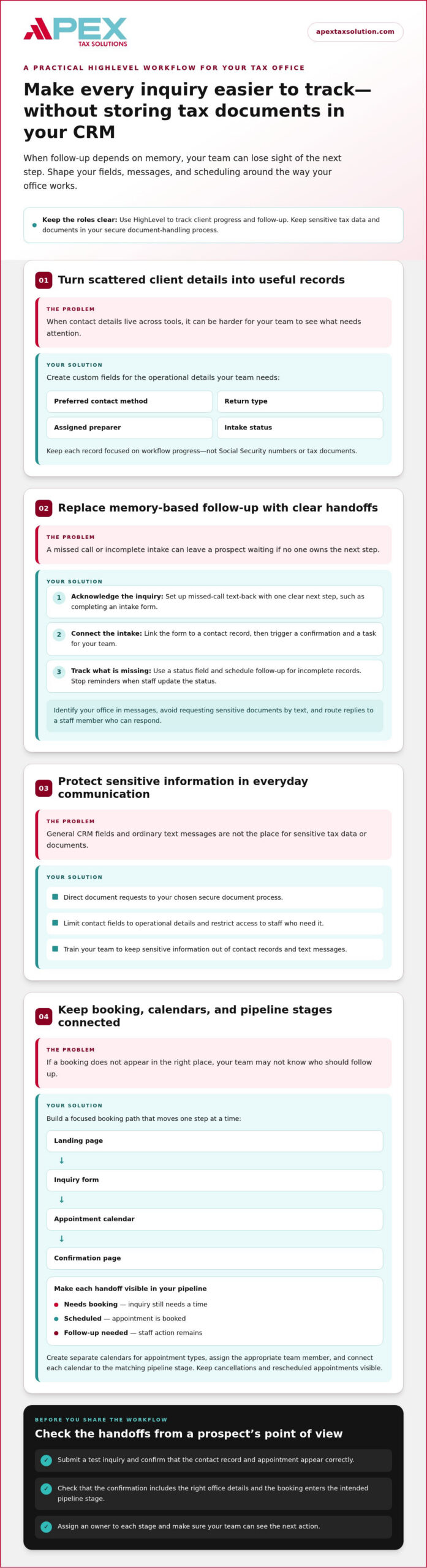
Create fields for workflow details your team needs, such as preferred contact method, return type, assigned preparer, and intake status. Keep sensitive tax data out of general CRM fields; use HighLevel to track progress, not to store Social Security numbers or tax documents. For checkout tax settings, the relevant regions depend on the nexus addresses you configure. With a United States nexus address, HighLevel offers 58 state selections.
Messaging and Missed-Call Automation
Set up missed-call text-back to acknowledge inquiries and offer one clear next step, such as completing an intake form. Create separate messages for new leads, scheduled appointments, and missing information. Identify your office in each message, avoid requesting sensitive documents by text, and route replies to a staff member who can respond.
Connect your intake form to a contact record, then trigger a confirmation and a task for your team. Direct document requests to your chosen secure document process, and use a status field to track outstanding items. Schedule follow-up for incomplete records, then stop reminders when staff update the status.
For marketing and retention, connect your landing page or referral form to a lead pipeline. Send a welcome message and follow up with prospects who haven’t booked. HighLevel snapshots can include a 12-holiday lead nurture workflow. Keep each campaign relevant to its audience, and review messages before sending.
Don’t assume a funnel will increase conversions by a set amount. Track your own form submissions and booked appointments, then adjust the page or follow-up based on prospect behavior. Automatic tax calculation applies to Course Offer checkouts, not tax-return preparation. HighLevel calculates tax only for regions covered by your configured nexus addresses, and buyers need to provide a valid billing address.
Configure Course Offer tax settings under Payments → Settings → Taxes. With tax-inclusive pricing, HighLevel backs tax out of the listed price. With tax-exclusive pricing, checkout adds tax to the subtotal. HighLevel generally calculates tax on the discounted amount after a coupon reduces the applicable subtotal or line items. When automatic tax is enabled, you can also attach multiple manually created tax rates to one course product as a fallback.
Protect client privacy by limiting contact fields to operational details and restricting access to staff who need it. Keep document requests out of ordinary text messages, use your secure document-handling process, and train your team not to store sensitive data in contact records.
Funnels, appointment calendars, and scheduling
HighLevel funnels guide prospects from inquiry to booked appointment. Connect each page, calendar, and reminder to a clear next step.
Appointment Calendar Setup
Create separate calendar options for different appointment types, such as an initial consultation and a document review. Add meeting details, availability, the assigned team member, and booking questions to each calendar. Keep intake questions focused on scheduling, such as preferred contact method or appointment purpose. A clear confirmation page should explain what happens after the prospect selects a time.
Appointment Reminders
Send a confirmation message after booking, then schedule reminders before the appointment. Include the meeting date, time, format, and rescheduling instructions in each message. For example, a reminder can prompt a client to gather relevant information without requesting sensitive tax documents by text. Match the message channel to your office workflow, and ensure replies reach someone who can respond.
Calendar and Pipeline Configuration
Connect each calendar to the pipeline stage that reflects the appointment’s purpose. A booked consultation can move a prospect into a scheduled stage, while a completed meeting can trigger a staff follow-up task. Keep cancellations and rescheduled appointments visible so your team can correct the record instead of treating an outdated booking as active.
Build a focused funnel sequence: a landing page, an inquiry form, a calendar, and a confirmation page. For example, a page for new-client consultations can request contact details and a preferred appointment type, then display the relevant calendar. Avoid unrelated questions that make booking feel like a full intake process.
Review the booking path from a prospect’s perspective. Submit a test inquiry, select a time, and confirm that the contact record and appointment appear correctly. Check that the confirmation message includes the right office details and that the booking enters the intended pipeline stage. Fix broken handoffs before sharing the funnel with prospects.
Use pipeline stages that make scheduling status easy to scan, such as “Needs booking,” “Scheduled,” and “Follow-up needed.” Assign a clear owner to each stage, then create a task for appointments that need staff action. This helps your team distinguish an unbooked inquiry from a confirmed meeting without relying on memory.
Keep calendar availability aligned with your team’s actual capacity. If different preparers handle different appointment types, assign each calendar to the appropriate staff member. Review appointment outcomes and booking sources regularly, then refine page wording or routing when prospects choose the wrong appointment.
A calendar-to-pipeline handoff can make your office workflow more organized, especially when you assign each booking a clear next action as part of tax office workflow support.
Optimized GoHighLevel sales funnels are associated with an average conversion-rate increase of 15-20% for tax firms, underscoring the value of keeping each booking step clear.
Lead generation and inbound lead nurture workflows
Use HighLevel to connect lead sources with a consistent follow-up process. Whether someone responds through your website, a referral channel, or a campaign, route the inquiry into the workflow your team uses.
Capture Leads With Clear Entry Points
Choose the sources your tax practice uses, such as a website form, referral page, or social campaign. If your practice conducts proactive outreach to corporate clients through tools like Seasely, route those contacts into your pipeline with a dedicated tag. Give each source its own form or tracking label so you can see where an inquiry began. Request only the details your team needs to route the prospect, such as name, contact information, and requested service.
Set a clear action for every submission. For a new website inquiry, create a contact record, assign a pipeline stage, and notify the staff member responsible for follow-up. For a referral, add a distinct source label so you can later compare personal recommendations with campaign inquiries.
Build a Useful Nurture Sequence
Plan a sequence that answers a prospect’s immediate question and offers one next step. For example, acknowledge an inquiry, follow up with a scheduling prompt, and create a staff task if the prospect hasn’t booked. Use the form or status as the trigger so existing clients don’t enter your new-lead sequence by mistake.
Map your workflow before you activate it:
- Entry: Start the sequence when a prospect submits a specific form or your team creates a referral record.
- Response: Send an acknowledgment that explains how the prospect can reach your office.
- Next step: Direct the prospect to schedule or provide a missing detail.
- Staff action: Create a follow-up task when the inquiry remains unfinished.
- Exit: Stop the sequence when the prospect books or your staff updates the status.
Keep each message relevant to its audience. For a new-prospect campaign, explain how to schedule an introductory conversation. For returning clients, point to the next step that fits their relationship with your office. Don’t request tax documents or sensitive identifiers in marketing messages. Direct clients to your secure document process instead.
You can also tailor retention workflows by labeling prospects, active clients, and returning clients separately. Send each group information suited to its relationship with your practice. For example, create a staff task to review an active client’s record, while a past client receives a relevant check-in.
Test each workflow with a sample submission before launch. Confirm that the right contact record appears, the message reaches its intended audience, and the assigned team member receives the task. Then compare inquiries, replies, and booked appointments by source. If a campaign attracts inquiries but few replies, revise its message or entry path before adding more automated messages.
Pipeline and CRM features
Compare available features with your team’s workflows before choosing a plan.
Plan and Feature Selection
Start with the daily tasks your CRM must support: managing contacts, tracking inquiries, assigning follow-up, and organizing pipeline stages. Then compare those needs with the features in your chosen HighLevel plan. The Starter account may suit a practice that needs a focused starting point, but its feature limits matter if your workflow depends on additional capabilities.
Use the 14-day free trial to test real processes before building around them. Create a sample contact, move it through your pipeline, assign a follow-up task, and confirm the right team member can access it. Include the staff roles and locations your practice needs to manage. If a required step depends on a feature your plan lacks, revise the workflow or assess another plan before launch.
CRM Workflows and Templates
A CRM workflow defines what happens after a contact reaches a specific stage or meets a set condition. Build templates around repeatable processes, such as a new inquiry awaiting staff review or a prospect needing follow-up. Give each template a clear trigger, owner, action, and exit condition so your team knows what happens next.
For example, a new-inquiry template can assign the record to a staff member and create a call task. A separate template can flag records with no recent activity for manual review. Use status labels that describe the next action instead of vague labels such as “open.” This makes the pipeline easier to understand during a team handoff.
Keep contact records useful without turning the CRM into a document store. Track operational details such as assigned preparer, preferred communication channel, and workflow status. Keep sensitive tax identifiers and documents out of general contact fields. Use your established secure process to collect and store tax documents.
Before activating a template, test it with a sample record. Confirm that the correct trigger fires, the assigned person receives the task, and the contact moves to the intended stage. Test an exit condition too. For instance, mark a sample record as scheduled and confirm that its inquiry follow-up task is no longer outstanding.
Review pipeline records as a team using consistent stage definitions. If one person marks an inquiry “in progress” while another expects “appointment booked,” handoffs become unclear. Write a short stage guide explaining when staff should move a record, who owns the next action, and what activity closes that step. This simple reference keeps CRM use consistent as your workflow grows.
Tax practice CRM and client data setup
Use HighLevel to manage client relationships and workflow status, not to prepare returns. A well-planned CRM record helps your team see who owns the next action without placing unnecessary tax data in general contact fields.
HighLevel, Canopy, TaxDome, and Drake serve different roles in a tax office’s software mix. HighLevel focuses on CRM, lead capture, and configurable workflows. Compare other tools based on the practice-management or tax-preparation tasks your team needs to handle. Choose according to your workflow, rather than assuming one system must do everything.
Design your data structure to separate operational details from sensitive tax information. A contact record can include a client’s preferred communication channel, assigned preparer, relationship status, and next follow-up date. Keep Social Security numbers, financial account details, and tax documents out of general CRM fields.
Before importing contacts, define a consistent record structure. For example, use the same labels for new prospects, active clients, and returning clients across the team. Standardize phone and email formats, remove duplicate records, and assign an owner to each contact. These steps reduce confusion when staff search for or update a record.
Limit access according to each staff member’s role. A team member who schedules appointments may need contact details and calendar status, but not every internal note. Review permissions when responsibilities change, and train staff not to put sensitive information in free-text notes or message histories.
Decide what HighLevel should track and where the next action belongs. A record might show “intake pending” while your secure document process handles files separately. Add a task for the responsible staff member, then update the CRM status when that person completes the step. This gives your team visibility without turning the CRM into a document repository.
- Contact identity: Store basic contact and preferred communication details.
- Workflow ownership: Record the assigned staff member and next action.
- Client status: Use clear labels for prospect, active, and returning relationships.
- Data boundaries: Keep sensitive identifiers and tax files outside general CRM fields.
Test the structure with a sample record before importing a full contact list. Search by name, assign a task, change the status, and confirm that another authorized team member can understand the record. Correct inconsistent labels before they spread across your database.
Build a CRM that supports organized client relationships while keeping tax documents in their proper workflow. Explore tax office workflow support.
After correcting inconsistent labels, test the workflow from intake through follow-up before relying on it across the practice. Confirm that each status has a clear meaning, the assigned person can see the next task, and staff know where to handle documents securely. GoHighLevel implementation for a tax professional’s practice typically takes 2 to 6 weeks, so plan time for configuration, testing, and staff training rather than treating setup as a single import task.
Keep the initial design focused on the operational details your team needs. Gather feedback from staff using the workflow, then adjust confusing fields or handoffs. Revisit access and data boundaries as the practice changes so the CRM remains useful for coordination without becoming a store for sensitive tax information.
Apex Tax Solutions: TaxSlayer basado en Web
Apex Tax Solutions LLC offers web-based tax preparation tools for tax professionals who need tax software alongside a separate CRM workflow. Use HighLevel to organize inquiries and follow-up, while tax preparation software supports return preparation. Keeping those roles distinct helps your team manage client relationships without treating a CRM as tax preparation software.
If your practice is evaluating software and workflow together, Apex can also help you explore professional tax solutions or the Service Bureau Partner Program. The right fit depends on the services your office provides and the support you need to build a dependable tax practice.
Contact Apex Tax Solutions LLC to discuss your tax software needs, or visit apextaxsolution.com.
Build a workflow that can grow with your practice
Your CRM should support the way you serve clients, not dictate it. Treat your GHL setup for tax professionals as an evolving business process: review where inquiries stall, which handoffs need clarity, and what your team can simplify next. Small, deliberate improvements can help keep your workflow manageable as your practice changes.
When you’re evaluating tax preparation tools, Apex Tax Solutions offers TaxSlayer Pro Web, TaxSlayer basado en Web, and Corp Software. Consider these offerings alongside your CRM workflow and the preparation work your office handles. Apex also brings software, support, and training together to help you build your practice with practical guidance.
Take the next step at your pace. Contact Apex Tax Solutions to discuss the tools and support that fit your business. You’re building a stronger foundation for your team and the clients who count on you.
Frequently Asked Questions
What is HighLevel?
HighLevel is a customer relationship management and marketing platform that helps businesses organize contacts and communications. A tax office might use it to track a prospect’s inquiry or coordinate appointment follow-up. It supports client acquisition and office workflows, while tax preparation software is used to prepare returns. Treat these as separate functions when choosing the right tool for each task, and don’t expect a CRM to prepare tax returns.
How do you set up GHL for a tax professional step by step?
A GHL setup for tax professionals starts by defining the workflow you want to improve. First, map how a new inquiry moves through your office. Next, configure contact records and staff access. Then create workflow stages and connect the lead sources you use. Test the process with a sample contact, including staff handoffs and follow-up. Finally, review the results with your team and adjust any confusing steps.